 FoxxDen
Set up in about 15 minutes. Stay accurate in less than 10 minutes a month.
No bank logins and nothing to connect. Add a few numbers or scan some statements, check in once a month, and FoxxDen shows your balance for every day ahead. Once you’ve set them up, it also helps you plan your savings and pay down your debts.
All the screenshots use a made-up budget.
1Quick start: five quick screens
Open FoxxDen and tap Quick start. All you need is your banking app and a rough idea of what your bills are.
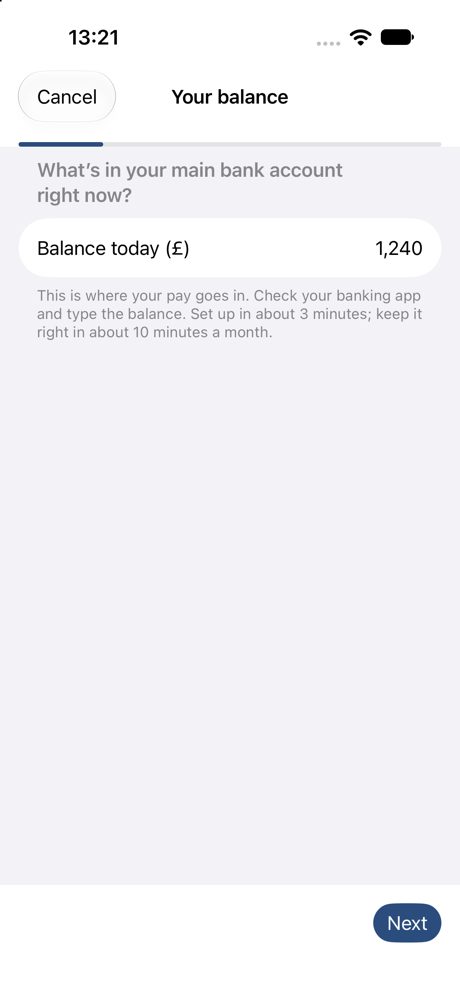
- Your balance. Type in what your main account has in it right now.
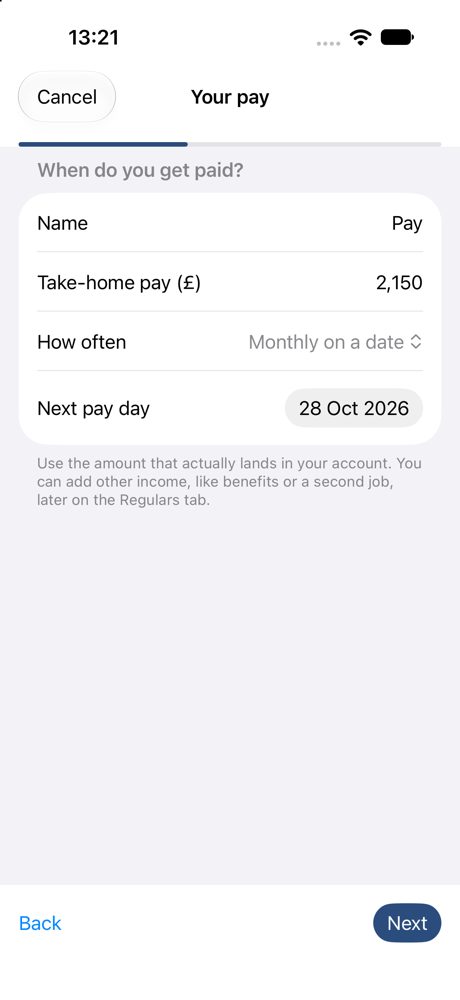
- Your pay. Enter what actually lands in your account, how often you’re paid and when your next pay day is. Monthly, weekly, fortnightly, every 4 weeks or the last working day of the month are all fine.
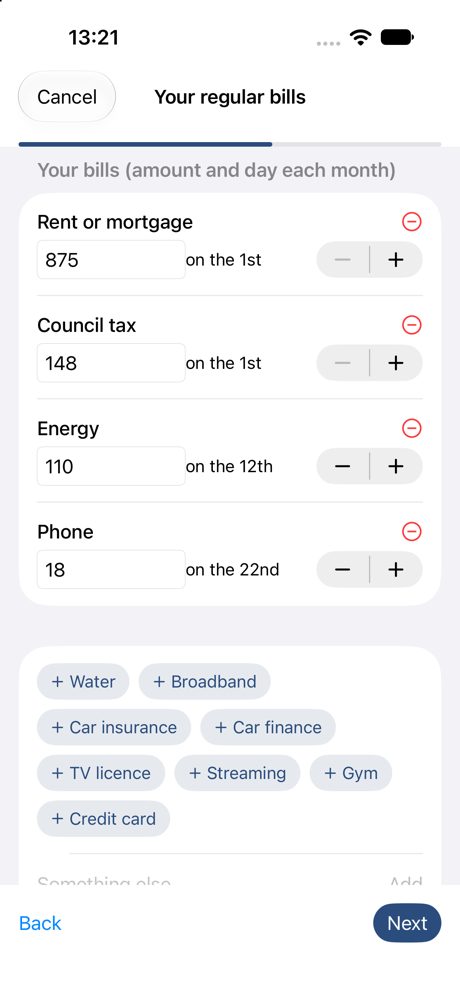
- Your bills. Tap the ones you pay, like rent, council tax, energy or your phone, then add how much each one is and the day it goes out. Just the big ones will do for now.
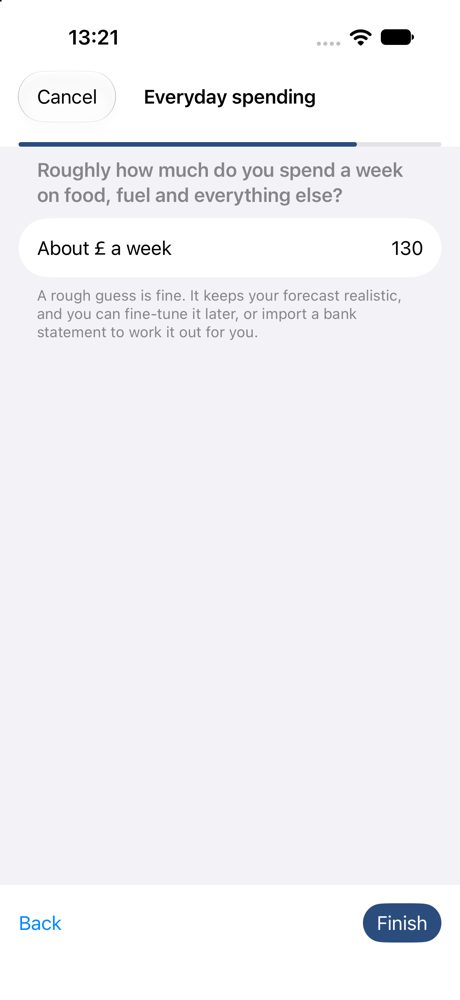
- Everyday spending. Roughly how much you spend in a week on food, fuel and everything else. A good guess is enough for now. Your monthly check-ins keep your forecast on track, and you can fine-tune the figure any time.
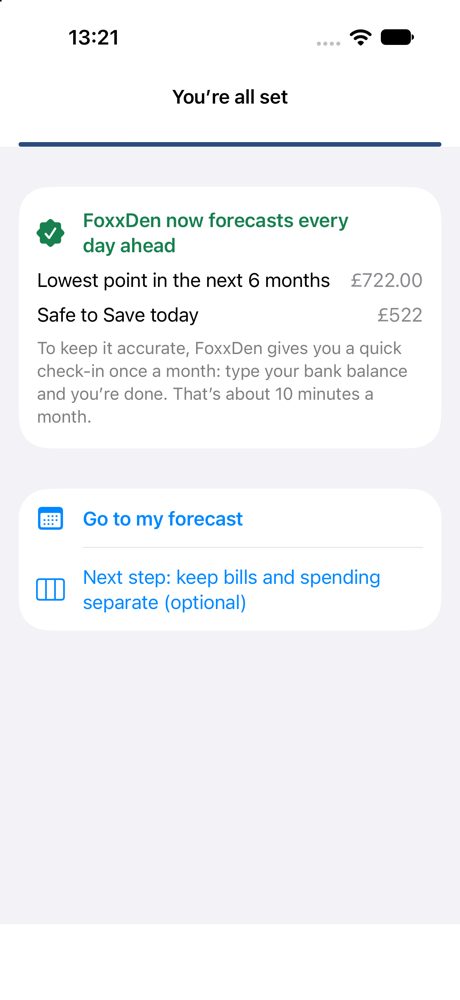
- That’s it. FoxxDen shows you your lowest balance in the months ahead and how much you can safely save today.
Forgotten something? Just add it later with the + button. It doesn’t need to be perfect on day one.
Or let your statements do the typing
Scanning your statements is just as easy, and often quicker. Tap Start from a bank statement instead (or More → Import a bank statement later on) and add your statement pages, PDF statements or screenshots from your banking app.
- FoxxDen reads them on your iPhone and picks out the payments that repeat, like your pay, bills and subscriptions.
- Tick the ones you want to add. You can tidy up names now, and amounts or dates any time.
- Two or three months of statements finds the most regular payments.
- With Pro, it also sorts your everyday spending into categories, so your forecast allows for groceries, fuel and the rest.
Your statements are read on your phone and never uploaded or saved.
2Your forecast
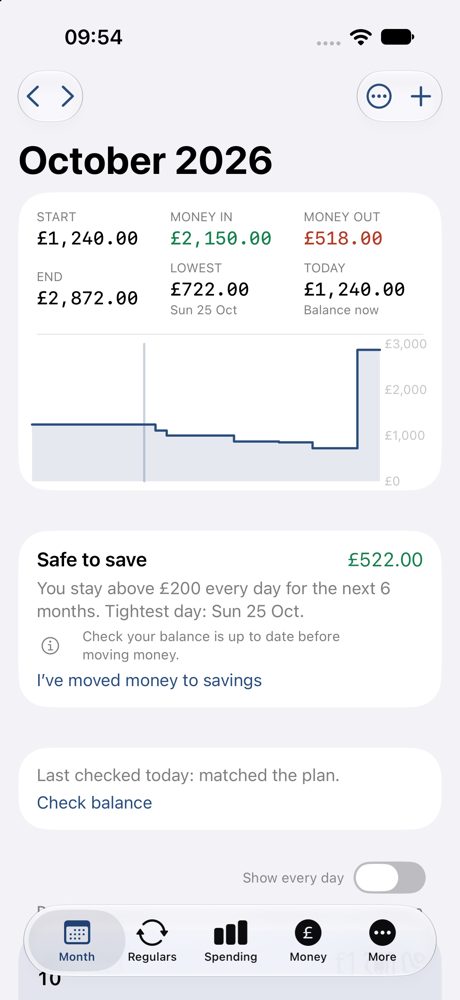
The Month page shows where your balance is heading, day by day.
- Lowest is the day this month when money is tightest.
- Safe to save is how much you could move into savings today and still have the amount you like to keep in your account (£200, unless you change it) every day for the next six months.
- If a payment is due on a weekend or bank holiday, FoxxDen moves it to the next working day, just like your bank does.
Scroll down to see each payment, the day it goes out, and what your balance will be afterwards. Use the arrows at the top to look further ahead.
3Regulars: everything that repeats
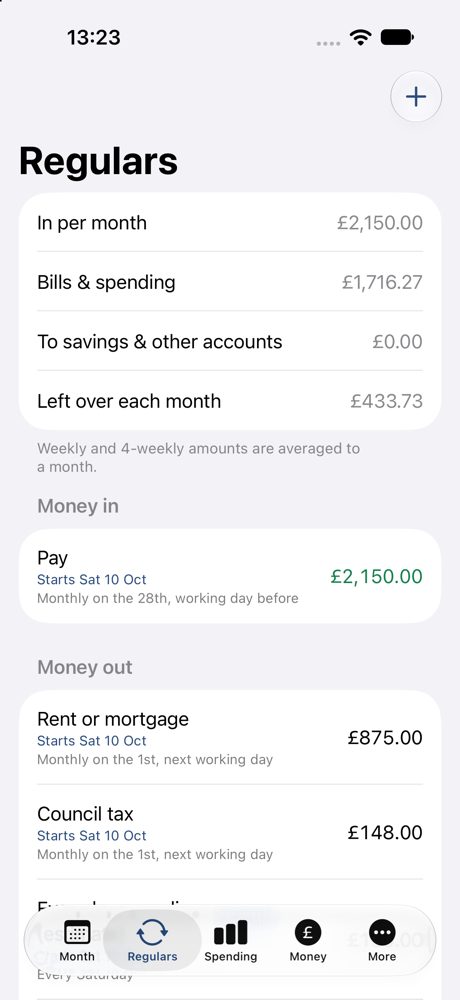
Your pay, bills, standing orders, savings and transfers all live on the Regulars tab. The totals at the top show what comes in each month, what goes out, and what’s left over.
- Tap + and choose a regular payment.
- Say whether it’s money in or out, how much it is and how often it happens.
- Got a pay rise, or a bill going up? Change the amount and pick the date it starts from. Earlier months won’t change.
4Monthly check-in: less than 10 minutes a month
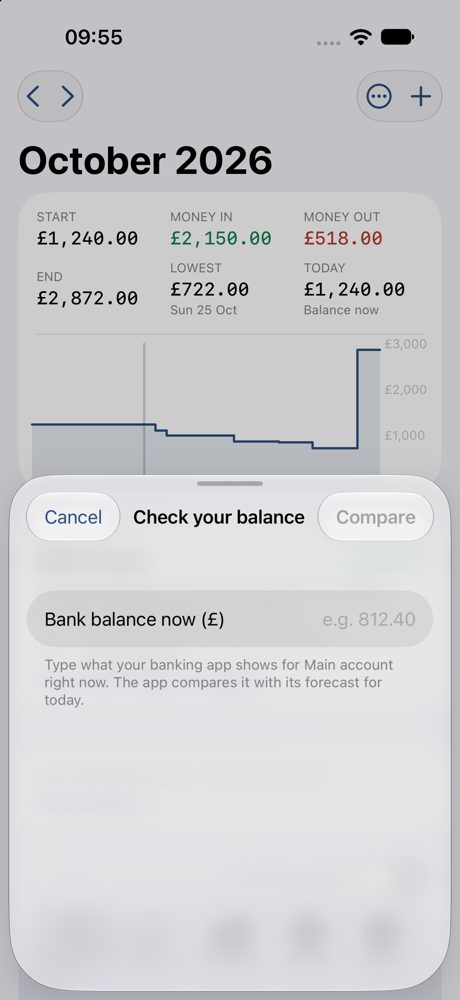
Once a month, FoxxDen gives you a nudge to check in. Open your banking app, type in your balance and tap Compare.
- If it matches, you’re all done.
- If it’s a bit out, FoxxDen adds one small correction so your forecast starts from your real balance again.
- Every couple of months, it’ll also ask you to update your card and savings balances.
And that’s the whole routine. No receipts to keep and no transactions to sort through.
5Ask FoxxDen
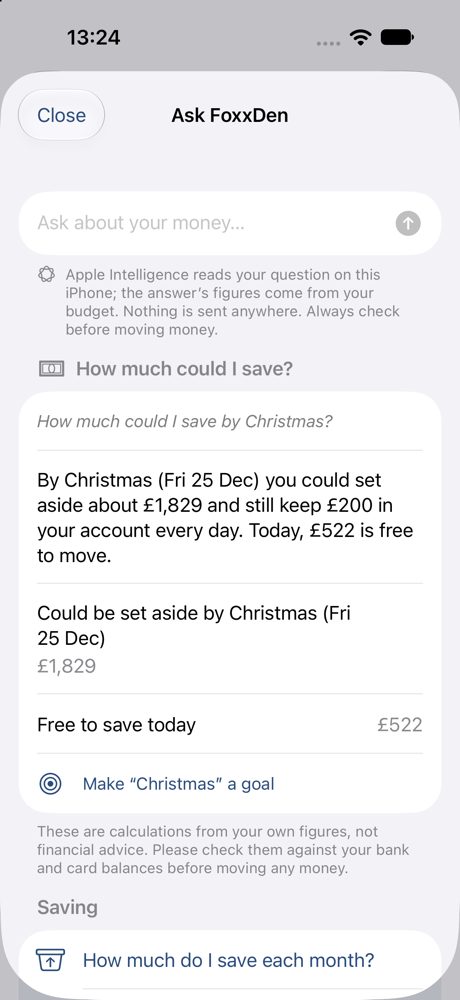
Ask questions the way you’d say them, like “How much could I save by Christmas?”, “When will I be debt-free?” or “Can I afford £300 on the 20th?”
Apple Intelligence reads your question on your iPhone, and every number in the answer is worked out by FoxxDen from your own budget. If your iPhone doesn’t have Apple Intelligence, you can pick from a list of ready-made questions instead.
Saving for something special? Tap Make it a goal and FoxxDen works out how much to put aside each pay day.
6When you’re ready
- Three accounts, one clear picture. Spending and saving get much easier when each account has one job: your main account for pay and personal bills, a bills account for household bills, and a spending account for day-to-day spending. That way, overspending can only happen in one place, and FoxxDen will tell you if your spending money isn’t keeping up. Lots of UK banks offer free extra accounts or pots, but if you’d rather stick with just one account, FoxxDen works just as well.
- Credit cards and 0% deals. Add your cards with their current interest rate (APR), and FoxxDen works out when you’ll be debt-free at your current payments, which card to pay off first, and a date to pay by 10 days before each 0% deal ends, so your payment clears in time. Set a goal to clear them sooner using your Safe to Save money.
- More than one goal? Split it. Spare money normally goes to whichever goal is due first, but you can share it out instead, say 60% to a card and 40% to a holiday. Clearing expensive debt usually saves you the most, but life’s for living too, and having something to look forward to is what keeps you going. If a split means a card won’t be cleared before its 0% deal ends, FoxxDen tells you, and suggests a share that would.
- Your safety net. FoxxDen works out what three months of your essential bills comes to and shows how close your easy-access savings are. Essential means the bills you’d have to pay even if times got really hard, like rent or mortgage, council tax, energy, water and insurance, not everyday spending or things you could cut back. If you have a bills account, it uses what you move into it each month, and you can always choose exactly which bills count. A common order that works for lots of people: clear expensive debt, build a safety net, then save, while keeping a little back for the good times.
- Savings, investments and crypto. Keep track of your pots, ISAs and coins, and link your regular savings payments so the amounts you pay in are added for you. FoxxDen doesn’t connect to your ISA or investment provider, so it can’t see what your fund is really worth, and investments go up and down. That’s why it asks you to update those values once a month. Crypto values update themselves from live prices.
- Alerts. Standard iPhone notifications give you a heads-up when your balance is going to run low, what’s safe to save on pay day, when a 0% deal is ending, and when it’s time for your monthly check-in.
Everyone new to FoxxDen gets 30 days of Pro free. If you decide not to keep Pro, nothing gets deleted. The Pro extras are simply locked until you upgrade.
FoxxDen does the sums using the figures you give it. It isn’t financial advice.